

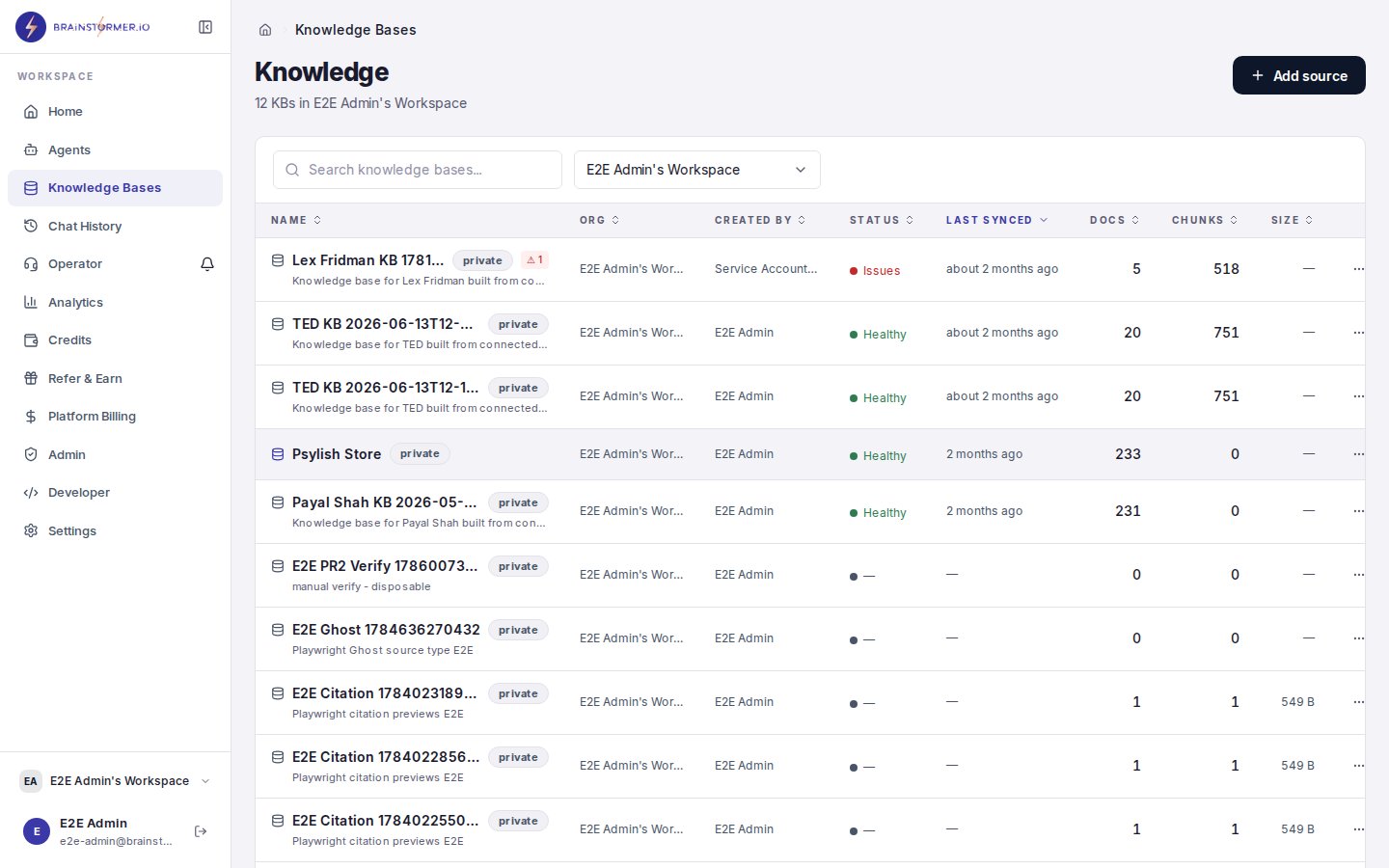
Knowledge base detail page showing document stats and content
Supported File Types
- Documents
- Images
- Audio
- Video
How to Upload
1
Open your knowledge base
Navigate to Knowledge in the sidebar and select the knowledge base you want to add content to.
2
Upload files
Click Upload Documents and either:
- Drag and drop files into the upload area
- Click to browse and select files from your computer
3
Monitor processing
Each uploaded file shows its processing status:
- Pending — Waiting in the processing queue
- Processing — Being parsed, chunked, and embedded
- Completed — Ready for search and retrieval
- Failed — Processing error (click for details)
The Processing Pipeline
When you upload a document, it goes through these stages:1. Document Loading
The system selects the best parser for your file type:- LlamaParse — Used for complex PDFs and DOCX files with tables, images, and multi-column layouts. Requires a LlamaParse API key.
- LangChain loaders — Used for simpler formats (TXT, CSV, basic PDFs). Always available as a fallback.
If LlamaParse is not configured, the system automatically falls back to LangChain loaders. Processing still works, but complex document layouts may not be parsed as accurately.
2. Content Extraction
For non-text media, additional extraction steps run:- Vision text extraction — Images and PDF pages with embedded images are analyzed by OpenRouter vision models to extract text, descriptions, and context.
- Transcription — Audio and video content is transcribed to text using Whisper.
3. Chunking
Extracted text is split into chunks for embedding:- Default chunk size: 1,000 characters
- Default overlap: 200 characters
4. Embedding
Each chunk is converted into a 3072-dimensional vector using Gemini Embedding 2:- Text chunks — Standard text embedding
- Image chunks — Multimodal embedding (the image itself is embedded, not just extracted text)
- Audio/video chunks — Embedded from transcribed text
5. Vector Storage
Embeddings are stored in your configured vector database:- Pinecone — Used in production for scalable, managed vector search
- ChromaDB — Used in local development
6. Optional: Graph Extraction
If enabled, the system extracts entities (people, organizations, concepts, products) and relationships from your content to build a knowledge graph. See Knowledge Graph for details.Processing Queue
Document processing runs asynchronously through a job queue (BullMQ + Redis). This means:- Uploads return immediately — you do not need to wait for processing
- Up to 5 documents are processed concurrently
- Failed jobs are retried up to 3 times automatically
- You can continue adding more documents while others are processing
Adding Web Sources
In addition to file uploads, you can add web-based content:- URLs — Any publicly accessible web page
- RSS feeds — Automatically pull in all items from a feed
- Sitemaps — Discover and add all pages from a sitemap
Managing Documents
From your knowledge base’s document list, you can:- View status — See processing state and any error details
- Browse chunks — See how a document was split and what was extracted
- Delete — Remove a document and its associated chunks and embeddings
- Re-process — Re-run the processing pipeline on a failed document