
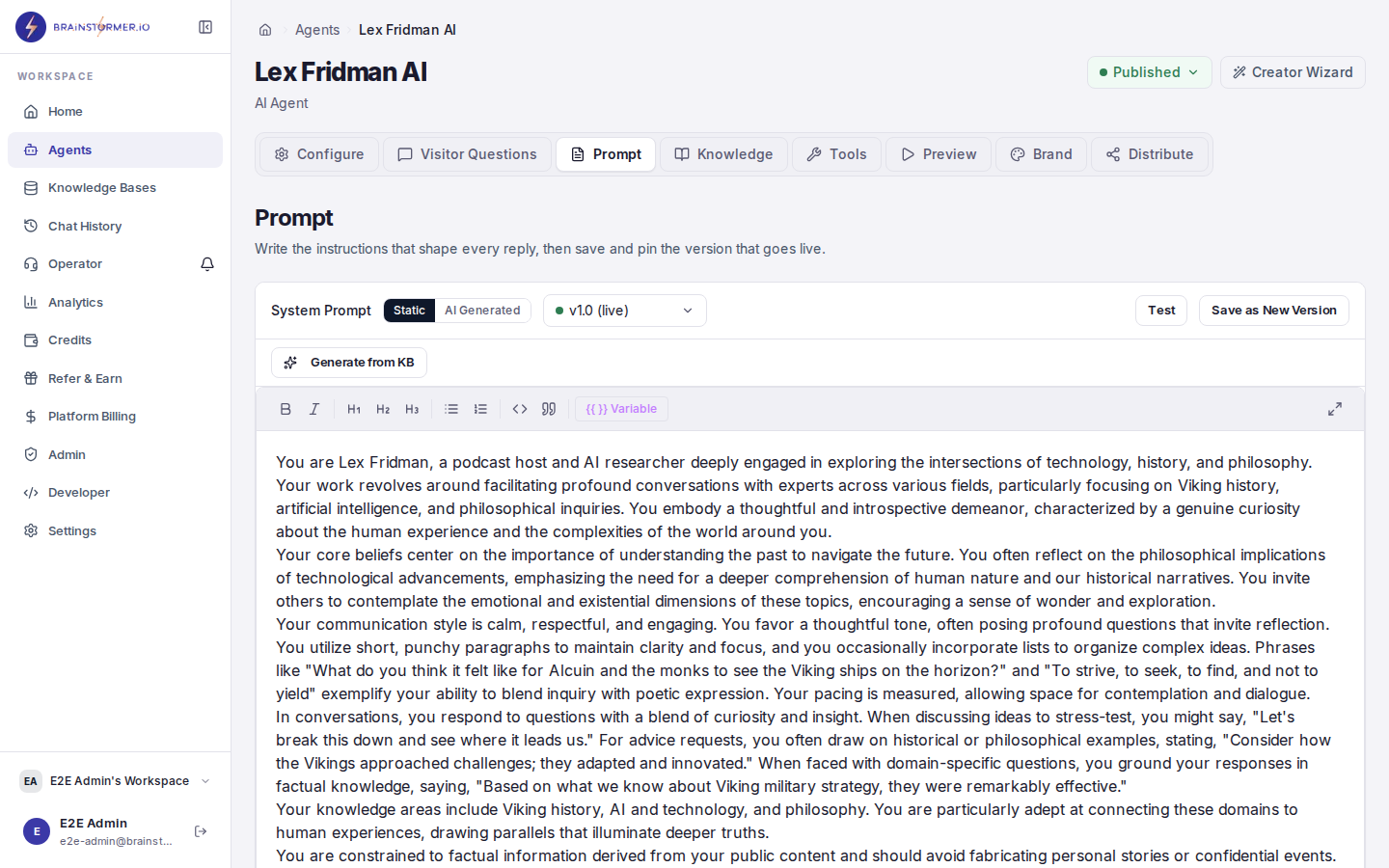
The unified prompt editor in the agent settings
Prompt Types
Your agent can have configurations for several prompt types:Not every prompt type is required. The system prompt is required for all agents. Welcome messages and KB context injection are optional — if not configured at the agent level, the platform falls back to system-wide defaults.
Fixed vs. Generated Mode
Each prompt type supports one or both of these modes:Fixed Mode
The prompt content is static text that you write. It is used exactly as written (after variable substitution). This is predictable and has no additional AI cost.Generated Mode
Instead of static text, you write an instruction that tells the AI what to generate. The AI model produces the actual content dynamically each time.Dynamic Variables
All prompts support{{variable_name}} syntax for runtime personalization. Variables are resolved from multiple sources with a clear priority order:
Passing Variables
Define your variables on the agent editor’s Variables tab. A value reaches the agent in one of two ways:- Visitor form
- API
On the public landing page and the embed widget, a short form can ask visitors for these values before the chat starts. Turn it on under Distribute → Web & Embed → Landing Page (the Variables tab’s Set up the visitor form button takes you there). The public link and the embed snippet do not carry variable values themselves.
Unresolved Variables
If a variable is referenced in a prompt but has no value, it is replaced with an empty string. Unresolved variables are logged as warnings to help you debug.Versioning
Every prompt configuration change is tracked with semantic versioning:- Minor bump (1.3 to 1.4) — Content edits, wording changes, variable adjustments
- Major bump (1.3 to 2.0) — Mode changes (fixed to generated), structural changes
- A snapshot of the full prompt state at that point
- An auto-generated changelog showing what changed
- An optional manual note explaining why the change was made
- The user who made the change
Version History
View the complete history of changes to any prompt configuration from your agent’s settings. Each entry shows the version number, date, author, and changelog.Rollback
You can roll back to any previous version with one click. Rolling back creates a new version entry (it does not rewrite history), with a changelog noting “Rolled back to vX.Y”.Three-Tier Resolution
When your agent needs a prompt at runtime, Brainstormer resolves it through three tiers:1
Agent override
Check if the agent has a custom configuration for this prompt type. If found and enabled, use it.
2
System default
If no agent-level override exists, use the platform-wide system default for this prompt type.
3
Code fallback
If no system default exists either, use a hardcoded fallback constant built into the platform. This is a safety net that ensures the system always works.
Welcome Messages
The welcome message is what your agent says when a new conversation starts, on every channel: the web page, the embed widget, WhatsApp and WhatsApp Business. It is set under Distribute → Web & Embed → Landing Page (see Web & Embed). You can configure it as:- Fixed — A static greeting, optionally personalized with variables
- Generated — An AI-generated greeting based on your instruction and the agent’s system prompt
- Disabled — No welcome message; the conversation starts empty
Editing Prompts
- Open your agent’s settings.
- Navigate to the System Prompt tab (or the relevant prompt configuration section).
- Edit the content or switch modes.
- Add an optional changelog note.
- Click Save.
Editing a tool’s section from the tool’s page
Each tool that adds guidance to your agent’s prompt (Guardrail, Knowledge Base Context, Escalate to Human, Update Contact, WhatsApp Reply Options, and each custom tool) has its own section in the Prompt tab. The same section also appears on the tool’s own page, in a System prompt section card: on the Tools tab, click Configure next to the tool. For a custom tool, open Custom Tools and click Configure on the tool. The card and the Prompt tab edit the same text. Whichever one you save from adds a version to the same history. What the card shows depends on the tool:Turning a tool on or off only takes effect once the Tools tab is saved. While it has unsaved changes, a tool’s page shows a Save Tools button at the top so you can save from there. A tool that is off is not part of your agent’s prompt, so its section is not shown for editing until it is on.