

Draft vs. Published
Draft agents are fully functional — you can chat with them, test knowledge base retrieval, and verify prompt behavior. The only difference is visibility: draft agents are not accessible outside your organization.
Preview Chat
Before publishing, use Preview Chat to test your agent as an end user would experience it:- Open your agent’s settings.
- Click Preview Chat (or the preview button).
- A chat interface opens showing exactly what users will see.
- Test various questions, check citations, and verify the welcome message.
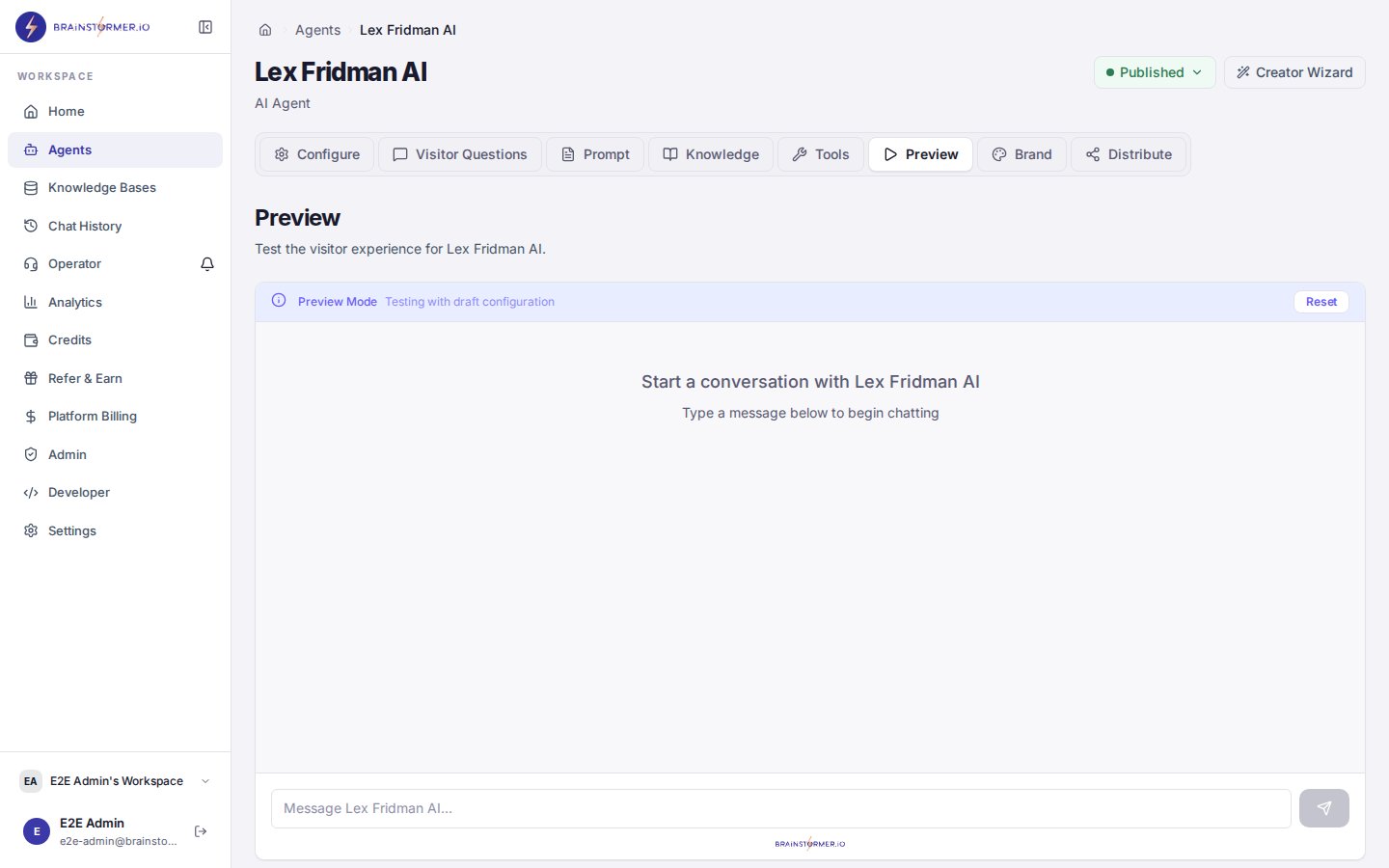
Preview Chat lets you test your agent before publishing
Publishing Your Agent
1
Review your configuration
Make sure your agent has:
- A clear, well-tested system prompt
- An appropriate model selected
- At least one knowledge base linked and indexed (required before publishing)
- A welcome message configured (optional but recommended)
2
Initiate publish
Click the Publish button on your agent’s page. This starts the publish process.
3
Approval (if required)
If your organization has the require publish approval setting enabled, your publish request enters a review queue. An organization admin or owner must approve it before the agent goes live.You will see a status banner showing the current state of your publish request:
- Pending approval — Waiting for an admin to review
- Approved — Published and live
- Rejected — Returned with feedback; make changes and resubmit
Organizations can enable or disable the approval requirement in Organization Settings. When disabled, publishing is immediate.
4
Agent goes live
Once published (or approved), your agent is accessible at its public URL:Anyone with this link can start a conversation with your agent.
Distribution Options
Published agents can be accessed in several ways:Public Agent Page
Every published agent gets a dedicated page at/a/your-agent-slug. This page is publicly accessible and requires no authentication. Users can start chatting immediately. This is the primary way to distribute your agent today — just share the link.
Set the page up, and publish it, under Distribute → Web & Embed → Landing Page. To personalise conversations on the page, turn on the visitor form there: it asks visitors for your agent’s variables before the chat starts. The public link itself does not carry variable values.
Embed Widget
Drop a floating chat widget onto any website. In the agent editor, open Distribute → Web & Embed → Embed Widget and copy the snippet:</body> tag of any page. A launcher button appears in the corner; clicking it opens your agent’s chat in a panel. data-color (launcher color) and data-position (right/left) are optional. The agent must be published and not require login to be embedded anonymously.
API Access
Call your agent directly via the API for integration with your own applications. This is also how your own code passes variables:Knowledge Base Readiness
Before an agent can be published, it must have at least one linked knowledge base and at least one indexed document in that knowledge base. This ensures the agent can retrieve grounded context when answering questions. You will see one of these states on the publish screen:
If publishing is blocked, the message explains why:
At least one knowledge base must be linked and have indexed documents before this agent can go live.Indexing happens automatically after you upload documents or connect sources. You do not need to leave the page — the status updates as documents finish.
Unpublishing
To take an agent offline, click Unpublish on the agent’s page. The agent returns to draft state immediately. The public URL and widget will stop working, and users will see an unavailable message. Unpublishing does not delete any data — conversations, configurations, and knowledge base links are preserved. You can republish at any time.Version History
Every time you update a published agent, the change is tracked in version history. You can:- View all versions — See a timeline of changes with changelogs
- Compare versions — See what changed between versions
- Roll back — Restore a previous version if a change causes issues
Approval Workflow Setup
Organization owners and admins can enable the publish approval requirement:- Go to Settings in the sidebar.
- Open Organization Settings.
- Toggle Require publish approval on or off.