> ## Documentation Index
> Fetch the complete documentation index at: https://docs.brainstormer.io/llms.txt
> Use this file to discover all available pages before exploring further.
# Creating a Knowledge Base
> Set up a knowledge base to give your agents grounded, citable responses.
A knowledge base is a collection of content that your agents can search and reference when generating responses. Instead of relying solely on the AI model's training data, your agent retrieves specific, relevant content from your knowledge base and cites it in its answers.
 ## Creating a Knowledge Base
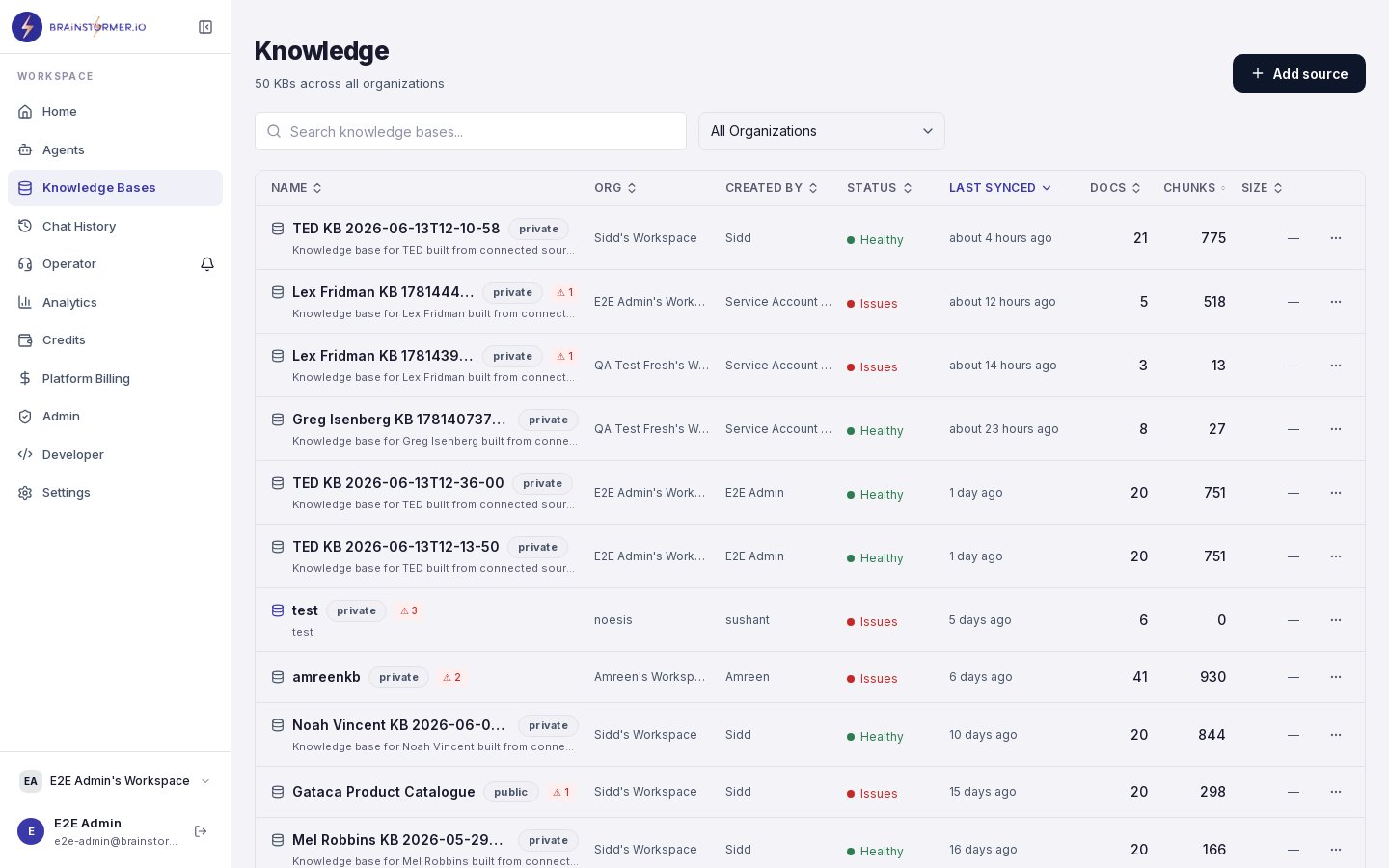
Click **Knowledge** in the sidebar to open the knowledge base management page.
Click **Create Knowledge Base**. Enter:
* **Name** — A descriptive name (e.g., "Product Documentation", "Blog Content")
* **Description** — Optional context about what this KB contains
Name your knowledge bases by content theme rather than source format. "Product FAQs" is more useful than "PDF uploads" when you are choosing which KB to link to an agent.
Knowledge bases are scoped to your organization. You can configure:
* **Visibility** — Private (org only), shared (linked orgs), or public
* **Processing settings** — Chunk size and overlap for document processing
Once created, you can start adding content through:
* **Document uploads** — PDF, DOCX, TXT, images, audio, video
* **Web sources** — URLs, RSS feeds, sitemaps
* **Social connectors** — Instagram, YouTube, Twitter
* **Platform connectors** — Substack, Medium, Ghost, and other blogs
See [Uploading Documents](/platform-guide/knowledge-bases/uploading-documents) and [Instagram Integration](/platform-guide/knowledge-bases/instagram-integration) for details on each source type.
## Linking a Knowledge Base to an Agent
Knowledge bases are linked to agents through a many-to-many relationship. One agent can use multiple KBs, and one KB can serve multiple agents.
To link a KB:
1. Open your agent's settings.
2. Navigate to the **Knowledge** tab.
3. Use the **search box** under "Add knowledge bases" to find a KB by name, then select it. Linked KBs move to the **Linked knowledge bases** section at the top, where you can adjust per-KB retrieval settings or open a KB's detail page.
4. Save your changes.
## Creating a Knowledge Base
Click **Knowledge** in the sidebar to open the knowledge base management page.
Click **Create Knowledge Base**. Enter:
* **Name** — A descriptive name (e.g., "Product Documentation", "Blog Content")
* **Description** — Optional context about what this KB contains
Name your knowledge bases by content theme rather than source format. "Product FAQs" is more useful than "PDF uploads" when you are choosing which KB to link to an agent.
Knowledge bases are scoped to your organization. You can configure:
* **Visibility** — Private (org only), shared (linked orgs), or public
* **Processing settings** — Chunk size and overlap for document processing
Once created, you can start adding content through:
* **Document uploads** — PDF, DOCX, TXT, images, audio, video
* **Web sources** — URLs, RSS feeds, sitemaps
* **Social connectors** — Instagram, YouTube, Twitter
* **Platform connectors** — Substack, Medium, Ghost, and other blogs
See [Uploading Documents](/platform-guide/knowledge-bases/uploading-documents) and [Instagram Integration](/platform-guide/knowledge-bases/instagram-integration) for details on each source type.
## Linking a Knowledge Base to an Agent
Knowledge bases are linked to agents through a many-to-many relationship. One agent can use multiple KBs, and one KB can serve multiple agents.
To link a KB:
1. Open your agent's settings.
2. Navigate to the **Knowledge** tab.
3. Use the **search box** under "Add knowledge bases" to find a KB by name, then select it. Linked KBs move to the **Linked knowledge bases** section at the top, where you can adjust per-KB retrieval settings or open a KB's detail page.
4. Save your changes.
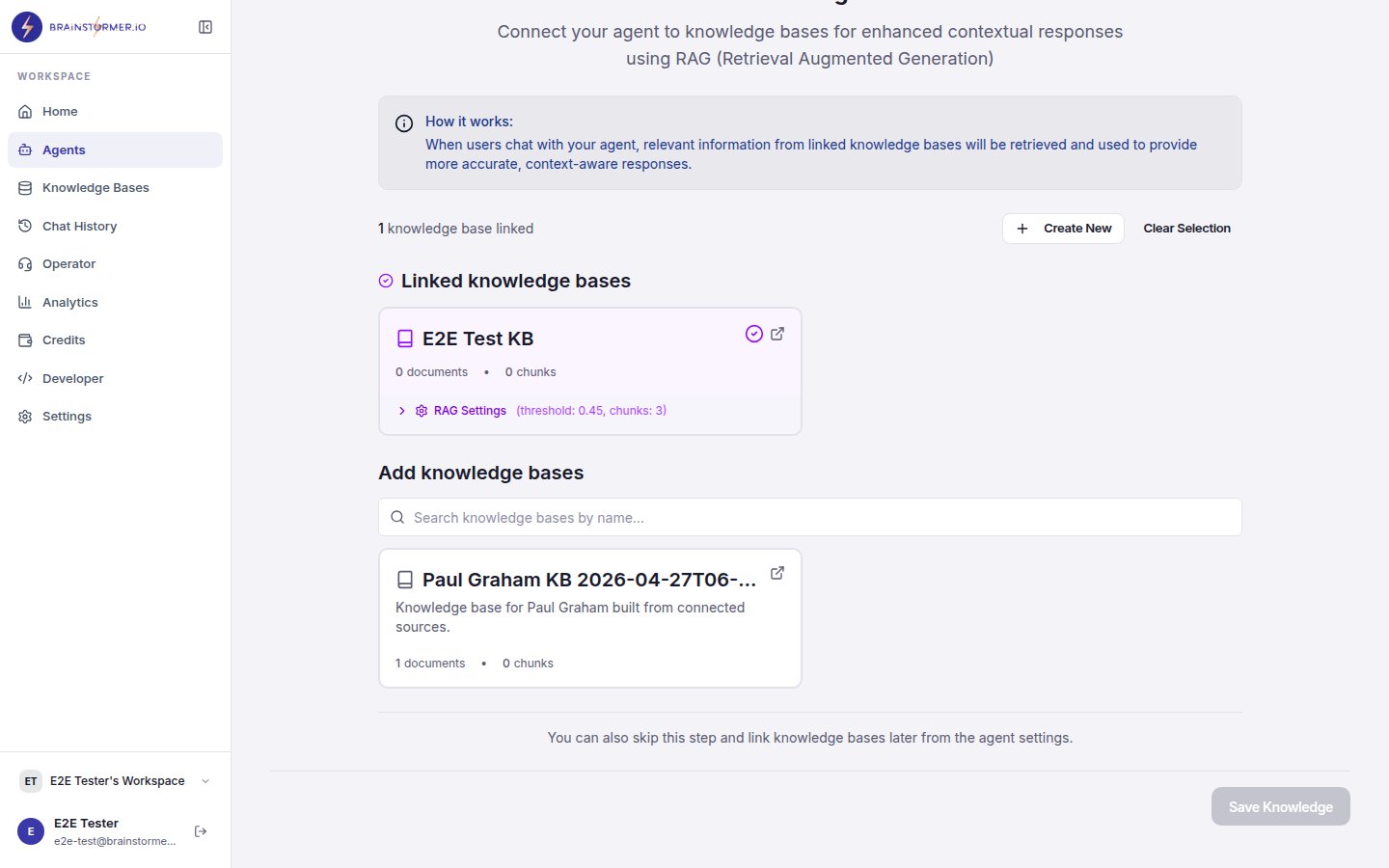 When linked, the agent will automatically search the KB during conversations and include relevant content with numbered citations.
You can link multiple knowledge bases to a single agent. During chat, the agent searches across all linked KBs (up to 3 results per KB), deduplicates overlapping content, and presents a unified set of citations.
## How Content Is Processed
When you add content to a knowledge base, it goes through a processing pipeline:
1. **Loading** — The document is parsed using LlamaParse (for PDFs and complex documents) or LangChain loaders (for simpler formats).
2. **Chunking** — Text is split into manageable chunks (default: 1000 characters with 200-character overlap).
3. **Embedding** — Each chunk is converted into a vector using Gemini Embedding 2 (3072-dimensional multimodal embeddings).
4. **Storage** — Vectors are stored in Pinecone (production) or ChromaDB (local development) for fast similarity search.
5. **Graph extraction** — Optionally, entities and relationships are extracted to build a knowledge graph.
6. **Summarization** — Document summaries are generated for the KB document registry.
This pipeline runs asynchronously via a job queue. You can monitor progress through the document status indicators.
## Document Status States
Each document in your KB shows its processing status:
| Status | Meaning |
| -------------- | ---------------------------------------------------------------------- |
| **Pending** | Queued for processing |
| **Processing** | Currently being parsed, chunked, and embedded |
| **Completed** | Fully processed and searchable |
| **Failed** | Processing encountered an error — check details for the specific issue |
Documents in **pending** or **processing** state are not yet searchable. Your agent will only retrieve content from documents that have reached **completed** status.
## Knowledge Base Settings
After creation, you can manage your KB settings:
* **Edit name and description** — Update metadata anytime
* **View documents** — Browse all uploaded and synced content
* **View entities** — See extracted entities and relationships from the knowledge graph
* **Search** — Run semantic search queries to test what your agent would find
* **Delete** — Remove the KB and all its content (this also removes links to agents)
## Best Practices
Create separate knowledge bases for distinct topics (e.g., "Product Docs" and "Company Policies") rather than by file type. This lets you link the right knowledge to the right agent.
The RAG system is only as good as the content it retrieves. Remove outdated documents, fix formatting issues, and ensure your content is clear and well-structured.
Use the KB search feature to test queries before linking to an agent. If the search returns irrelevant results, consider improving your content or adjusting chunk settings.
If your agent needs both product documentation and blog content, keep them in separate KBs. This lets you update each independently and potentially reuse them across different agents.
When linked, the agent will automatically search the KB during conversations and include relevant content with numbered citations.
You can link multiple knowledge bases to a single agent. During chat, the agent searches across all linked KBs (up to 3 results per KB), deduplicates overlapping content, and presents a unified set of citations.
## How Content Is Processed
When you add content to a knowledge base, it goes through a processing pipeline:
1. **Loading** — The document is parsed using LlamaParse (for PDFs and complex documents) or LangChain loaders (for simpler formats).
2. **Chunking** — Text is split into manageable chunks (default: 1000 characters with 200-character overlap).
3. **Embedding** — Each chunk is converted into a vector using Gemini Embedding 2 (3072-dimensional multimodal embeddings).
4. **Storage** — Vectors are stored in Pinecone (production) or ChromaDB (local development) for fast similarity search.
5. **Graph extraction** — Optionally, entities and relationships are extracted to build a knowledge graph.
6. **Summarization** — Document summaries are generated for the KB document registry.
This pipeline runs asynchronously via a job queue. You can monitor progress through the document status indicators.
## Document Status States
Each document in your KB shows its processing status:
| Status | Meaning |
| -------------- | ---------------------------------------------------------------------- |
| **Pending** | Queued for processing |
| **Processing** | Currently being parsed, chunked, and embedded |
| **Completed** | Fully processed and searchable |
| **Failed** | Processing encountered an error — check details for the specific issue |
Documents in **pending** or **processing** state are not yet searchable. Your agent will only retrieve content from documents that have reached **completed** status.
## Knowledge Base Settings
After creation, you can manage your KB settings:
* **Edit name and description** — Update metadata anytime
* **View documents** — Browse all uploaded and synced content
* **View entities** — See extracted entities and relationships from the knowledge graph
* **Search** — Run semantic search queries to test what your agent would find
* **Delete** — Remove the KB and all its content (this also removes links to agents)
## Best Practices
Create separate knowledge bases for distinct topics (e.g., "Product Docs" and "Company Policies") rather than by file type. This lets you link the right knowledge to the right agent.
The RAG system is only as good as the content it retrieves. Remove outdated documents, fix formatting issues, and ensure your content is clear and well-structured.
Use the KB search feature to test queries before linking to an agent. If the search returns irrelevant results, consider improving your content or adjusting chunk settings.
If your agent needs both product documentation and blog content, keep them in separate KBs. This lets you update each independently and potentially reuse them across different agents.