> ## Documentation Index
> Fetch the complete documentation index at: https://docs.brainstormer.io/llms.txt
> Use this file to discover all available pages before exploring further.
# Conversation History
> Browse past conversations, filter by agent, and review flagged messages.
Brainstormer keeps a complete history of all conversations across your organization. You can browse, search, and review past interactions to understand how your agents are performing and what your users are asking.
## Viewing Conversation History
Navigate to **Chat History** in the sidebar to see all conversations in your organization.
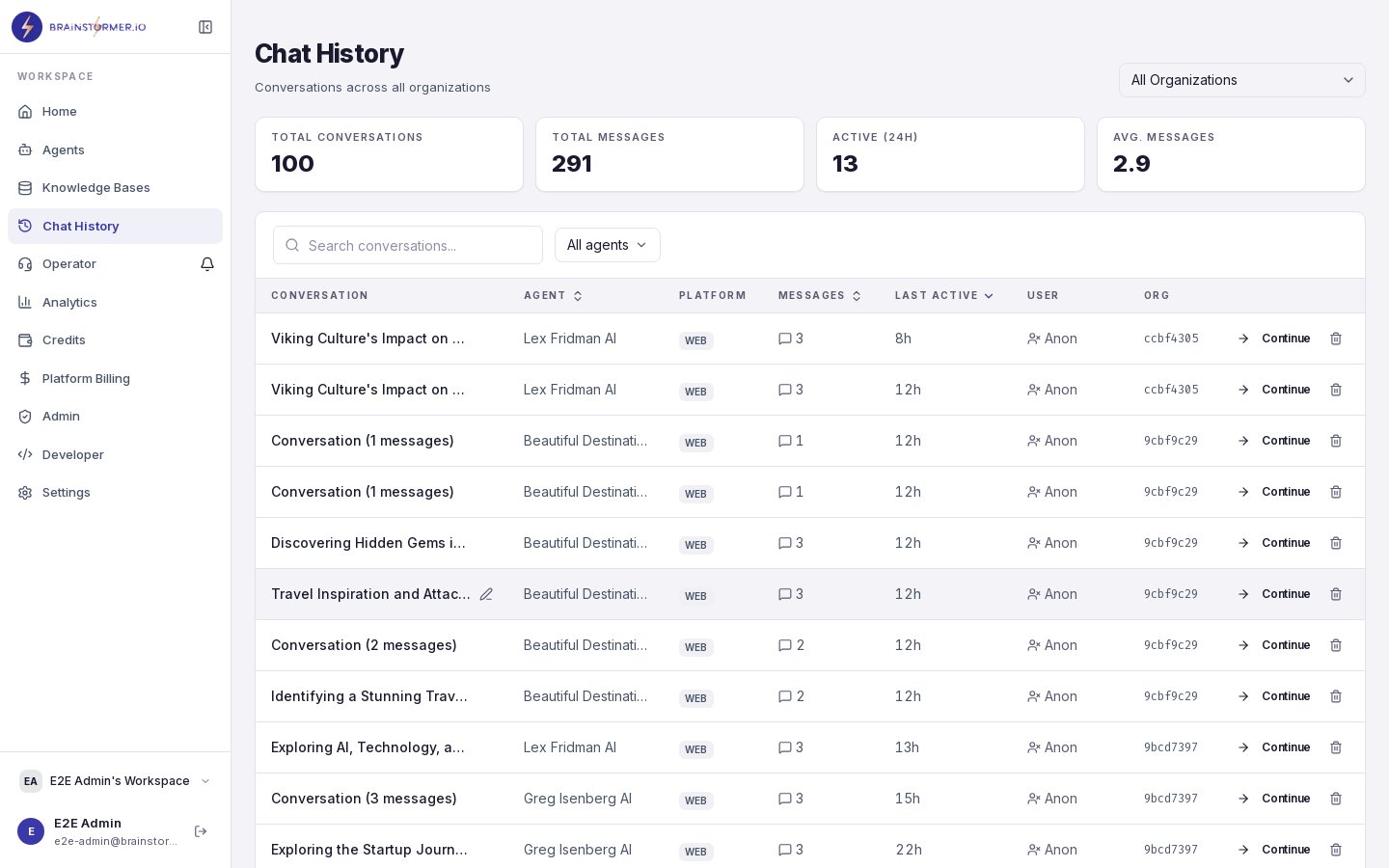 The list shows:
* **Agent name** — Which agent the conversation was with
* **User** — Who initiated the conversation
* **Start date** — When the conversation began
* **Message count** — How many messages were exchanged
* **Last activity** — When the most recent message was sent
Click any conversation to view the full message thread, including all user messages, agent responses, citations, and attachments.
## Filtering Conversations
Use the filter controls to narrow down the conversation list:
### By Agent
Select a specific agent to see only its conversations. This is useful for reviewing how a particular agent is handling user questions.
### By User
Filter by user to see all conversations from a specific person across all agents.
### By Date Range
Set a start and end date to view conversations from a specific time period.
### By Platform
If your agents are deployed across multiple channels (web, API, widget), filter by platform to see conversations from a specific channel.
## Conversation Details
When you open a conversation, you see:
* **Full message thread** — All messages in chronological order
* **Agent responses with citations** — Numbered citations linking to knowledge base sources
* **Attachments** — Any files uploaded during the conversation
* **Token usage** — How many tokens were consumed per message
* **Metadata** — Conversation ID, platform, creation date
Citations in historical conversations show the sources that were retrieved at the time of the response. Since knowledge base content may have been updated since then, the same question asked today might produce different citations.
## Message Flagging
If you notice a problematic response — inaccurate information, inappropriate tone, or a missed knowledge base hit — you can flag individual messages for review.
Flagged messages help you:
* Identify patterns in agent behavior that need correction
* Find system prompt improvements
* Spot knowledge base gaps
* Track quality issues over time
## Usage Analytics
From the conversation history, you can track:
* **Conversation volume** — How many conversations your agents handle over time
* **Message volume** — Total messages sent and received
* **Token consumption** — AI token usage per conversation and per agent
* **Cost tracking** — Estimated cost per conversation based on model pricing
For deeper analytics, navigate to the **Analytics** section in the sidebar.
## Data Retention
Conversations are stored in the database as long as your account is active:
* **Messages** — Full text of all user and agent messages
* **Attachments** — File metadata and cloud storage references
* **Token usage** — Per-message token counts and costs
* **Variables** — Conversation variables (sensitive variables are encrypted)
Conversation history is scoped to your organization. Members can view conversations based on their role and permissions. Viewers can see conversations they participated in, while admins and owners can see all organization conversations.
## Multiple Concurrent Sessions
Users can have multiple active conversations running simultaneously with different agents (or even the same agent). Each conversation maintains its own independent context and memory.
This is useful for:
* Testing multiple agents side-by-side
* Keeping separate conversations for different topics
* Running parallel interactions with the same agent for different purposes
The list shows:
* **Agent name** — Which agent the conversation was with
* **User** — Who initiated the conversation
* **Start date** — When the conversation began
* **Message count** — How many messages were exchanged
* **Last activity** — When the most recent message was sent
Click any conversation to view the full message thread, including all user messages, agent responses, citations, and attachments.
## Filtering Conversations
Use the filter controls to narrow down the conversation list:
### By Agent
Select a specific agent to see only its conversations. This is useful for reviewing how a particular agent is handling user questions.
### By User
Filter by user to see all conversations from a specific person across all agents.
### By Date Range
Set a start and end date to view conversations from a specific time period.
### By Platform
If your agents are deployed across multiple channels (web, API, widget), filter by platform to see conversations from a specific channel.
## Conversation Details
When you open a conversation, you see:
* **Full message thread** — All messages in chronological order
* **Agent responses with citations** — Numbered citations linking to knowledge base sources
* **Attachments** — Any files uploaded during the conversation
* **Token usage** — How many tokens were consumed per message
* **Metadata** — Conversation ID, platform, creation date
Citations in historical conversations show the sources that were retrieved at the time of the response. Since knowledge base content may have been updated since then, the same question asked today might produce different citations.
## Message Flagging
If you notice a problematic response — inaccurate information, inappropriate tone, or a missed knowledge base hit — you can flag individual messages for review.
Flagged messages help you:
* Identify patterns in agent behavior that need correction
* Find system prompt improvements
* Spot knowledge base gaps
* Track quality issues over time
## Usage Analytics
From the conversation history, you can track:
* **Conversation volume** — How many conversations your agents handle over time
* **Message volume** — Total messages sent and received
* **Token consumption** — AI token usage per conversation and per agent
* **Cost tracking** — Estimated cost per conversation based on model pricing
For deeper analytics, navigate to the **Analytics** section in the sidebar.
## Data Retention
Conversations are stored in the database as long as your account is active:
* **Messages** — Full text of all user and agent messages
* **Attachments** — File metadata and cloud storage references
* **Token usage** — Per-message token counts and costs
* **Variables** — Conversation variables (sensitive variables are encrypted)
Conversation history is scoped to your organization. Members can view conversations based on their role and permissions. Viewers can see conversations they participated in, while admins and owners can see all organization conversations.
## Multiple Concurrent Sessions
Users can have multiple active conversations running simultaneously with different agents (or even the same agent). Each conversation maintains its own independent context and memory.
This is useful for:
* Testing multiple agents side-by-side
* Keeping separate conversations for different topics
* Running parallel interactions with the same agent for different purposes