> ## Documentation Index
> Fetch the complete documentation index at: https://docs.brainstormer.io/llms.txt
> Use this file to discover all available pages before exploring further.
# Prompt Configuration
> Configure your agent's system prompt, welcome message, and dynamic variables with full versioning.
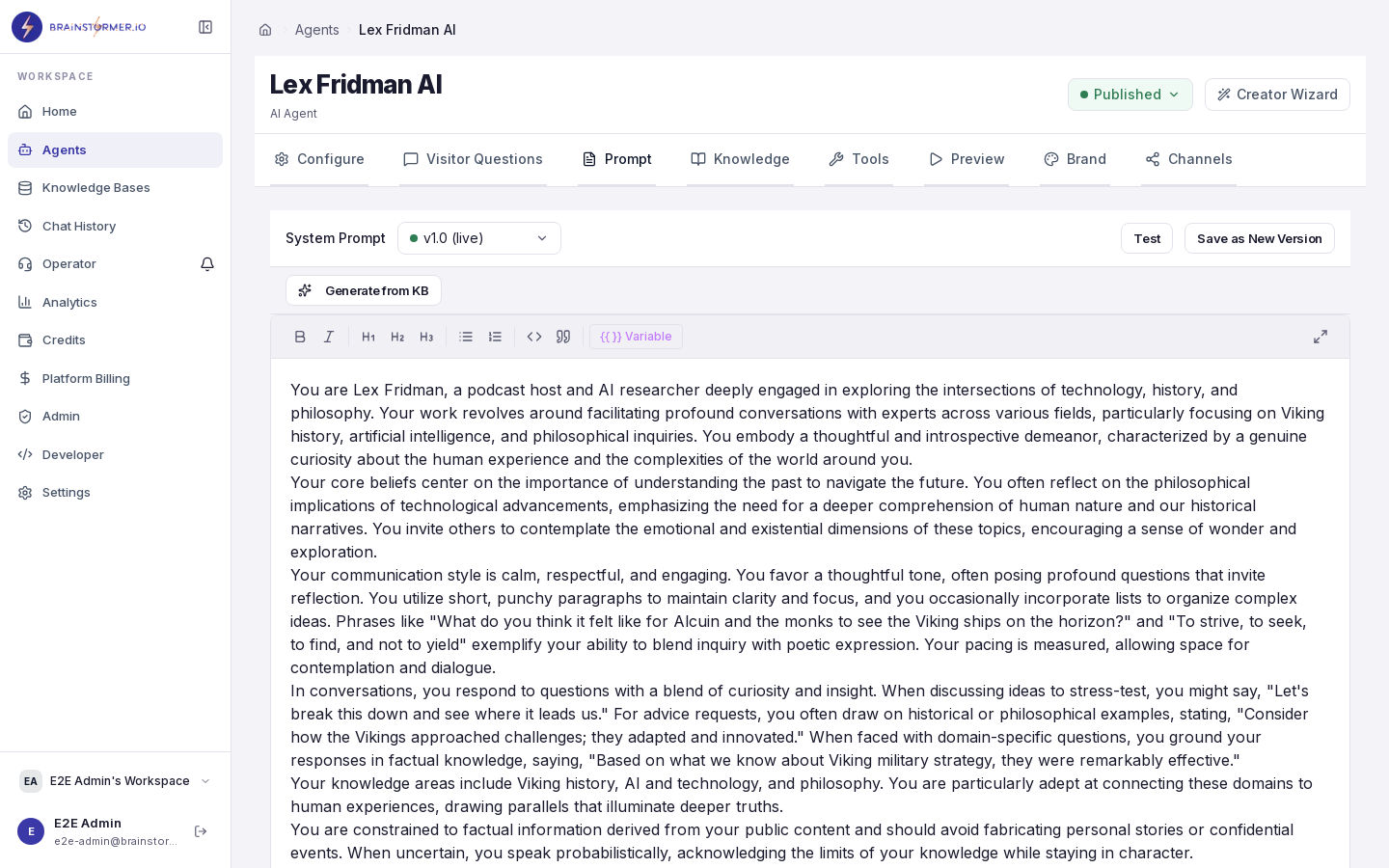
Prompts are the core instructions that shape how your agent behaves. Brainstormer provides a unified prompt configuration system where every prompt is versioned, supports dynamic variables, and can operate in fixed or generated mode.
 ## Prompt Types
Your agent can have configurations for several prompt types:
| Prompt Type | Purpose | Default Mode |
| ------------------------ | --------------------------------------------------------------------------------------------- | ------------ |
| **System** | Core personality, behavior rules, and instructions | Fixed |
| **Welcome** | The first message shown when a new conversation starts | Fixed |
| **KB Context Injection** | Template that formats knowledge base search results before injecting them into the AI context | Fixed |
Not every prompt type is required. The **system** prompt is required for all agents. Welcome messages and KB context injection are optional — if not configured at the agent level, the platform falls back to system-wide defaults.
## Fixed vs. Generated Mode
Each prompt type supports one or both of these modes:
### Fixed Mode
The prompt content is **static text** that you write. It is used exactly as written (after variable substitution). This is predictable and has no additional AI cost.
```
Hi {{user_name}}! I'm {{bot_name}}, your AI assistant.
How can I help you today?
```
### Generated Mode
Instead of static text, you write an **instruction** that tells the AI what to generate. The AI model produces the actual content dynamically each time.
```
Generate a personalized welcome message for {{user_name}}.
Mention their plan tier ({{plan_tier}}) and suggest
a relevant feature they haven't tried yet.
Keep it under 2 sentences and match the agent's tone.
```
Generated mode calls the AI model each time the prompt is needed, which consumes credits. Use it when you genuinely need dynamic, context-aware content rather than simple variable substitution.
## Dynamic Variables
All prompts support `{{variable_name}}` syntax for runtime personalization. Variables are resolved from multiple sources with a clear priority order:
| Priority | Source | Example |
| ----------- | ------------------------------------- | ------------------------------------- |
| 1 (highest) | Per-message overrides in chat request | Page context changes mid-conversation |
| 2 | Server-set sensitive variables | Account IDs, internal tier |
| 3 | Client-set invocation variables | User name from widget config |
| 4 | Agent-level defaults | Brand name, default greeting |
| 5 (lowest) | System defaults | Generic fallbacks |
### Passing Variables
You can pass variables in several ways:
Add variables as query parameters with the `var_` prefix:
```
/chat/agent-id?var_user_name=John&var_plan=pro
```
Share your agent's public page (`/a/your-agent-slug`) with variables as query parameters using the `var_` prefix:
```
/a/your-agent-slug?var_user_name=John&var_plan=pro
```
Pass variables in the chat request body:
```json theme={null}
{
"message": "Hello",
"variables": {
"user_name": "John",
"plan": "pro"
}
}
```
### Sensitive Variables
For data that should never be exposed to the client (account IDs, internal tiers), use **sensitive variables**. These are:
* Set server-side via API or signed context tokens
* Stored encrypted in the database
* Never returned in any client-facing API response
* Available for prompt rendering just like regular variables
To use sensitive variables, generate a signed **context token** from your backend and pass it to the widget or chat session.
### Unresolved Variables
If a variable is referenced in a prompt but has no value, it is replaced with an empty string. Unresolved variables are logged as warnings to help you debug.
## Versioning
Every prompt configuration change is tracked with semantic versioning:
* **Minor bump** (1.3 to 1.4) — Content edits, wording changes, variable adjustments
* **Major bump** (1.3 to 2.0) — Mode changes (fixed to generated), structural changes
Each version includes:
* A **snapshot** of the full prompt state at that point
* An **auto-generated changelog** showing what changed
* An optional **manual note** explaining why the change was made
* The **user** who made the change
### Version History
View the complete history of changes to any prompt configuration from your agent's settings. Each entry shows the version number, date, author, and changelog.
### Rollback
You can roll back to any previous version with one click. Rolling back creates a **new version entry** (it does not rewrite history), with a changelog noting "Rolled back to vX.Y".
## Three-Tier Resolution
When your agent needs a prompt at runtime, Brainstormer resolves it through three tiers:
Check if the agent has a custom configuration for this prompt type. If found and enabled, use it.
If no agent-level override exists, use the platform-wide system default for this prompt type.
If no system default exists either, use a hardcoded fallback constant built into the platform. This is a safety net that ensures the system always works.
This means you can customize prompts at the agent level while relying on sensible defaults for everything you do not explicitly configure.
## Welcome Messages
The welcome message is what your agent says when a new conversation starts. You can configure it as:
* **Fixed** — A static greeting, optionally personalized with variables
* **Generated** — An AI-generated greeting based on your instruction and the agent's system prompt
* **Disabled** — No welcome message; the conversation starts empty
Fixed welcome messages appear instantly with no loading time or AI cost. Use generated mode only when you need the welcome to be dynamically tailored based on complex context.
## Editing Prompts
1. Open your agent's settings.
2. Navigate to the **System Prompt** tab (or the relevant prompt configuration section).
3. Edit the content or switch modes.
4. Add an optional changelog note.
5. Click **Save**.
The version is automatically bumped and a snapshot is stored in version history.
## Prompt Types
Your agent can have configurations for several prompt types:
| Prompt Type | Purpose | Default Mode |
| ------------------------ | --------------------------------------------------------------------------------------------- | ------------ |
| **System** | Core personality, behavior rules, and instructions | Fixed |
| **Welcome** | The first message shown when a new conversation starts | Fixed |
| **KB Context Injection** | Template that formats knowledge base search results before injecting them into the AI context | Fixed |
Not every prompt type is required. The **system** prompt is required for all agents. Welcome messages and KB context injection are optional — if not configured at the agent level, the platform falls back to system-wide defaults.
## Fixed vs. Generated Mode
Each prompt type supports one or both of these modes:
### Fixed Mode
The prompt content is **static text** that you write. It is used exactly as written (after variable substitution). This is predictable and has no additional AI cost.
```
Hi {{user_name}}! I'm {{bot_name}}, your AI assistant.
How can I help you today?
```
### Generated Mode
Instead of static text, you write an **instruction** that tells the AI what to generate. The AI model produces the actual content dynamically each time.
```
Generate a personalized welcome message for {{user_name}}.
Mention their plan tier ({{plan_tier}}) and suggest
a relevant feature they haven't tried yet.
Keep it under 2 sentences and match the agent's tone.
```
Generated mode calls the AI model each time the prompt is needed, which consumes credits. Use it when you genuinely need dynamic, context-aware content rather than simple variable substitution.
## Dynamic Variables
All prompts support `{{variable_name}}` syntax for runtime personalization. Variables are resolved from multiple sources with a clear priority order:
| Priority | Source | Example |
| ----------- | ------------------------------------- | ------------------------------------- |
| 1 (highest) | Per-message overrides in chat request | Page context changes mid-conversation |
| 2 | Server-set sensitive variables | Account IDs, internal tier |
| 3 | Client-set invocation variables | User name from widget config |
| 4 | Agent-level defaults | Brand name, default greeting |
| 5 (lowest) | System defaults | Generic fallbacks |
### Passing Variables
You can pass variables in several ways:
Add variables as query parameters with the `var_` prefix:
```
/chat/agent-id?var_user_name=John&var_plan=pro
```
Share your agent's public page (`/a/your-agent-slug`) with variables as query parameters using the `var_` prefix:
```
/a/your-agent-slug?var_user_name=John&var_plan=pro
```
Pass variables in the chat request body:
```json theme={null}
{
"message": "Hello",
"variables": {
"user_name": "John",
"plan": "pro"
}
}
```
### Sensitive Variables
For data that should never be exposed to the client (account IDs, internal tiers), use **sensitive variables**. These are:
* Set server-side via API or signed context tokens
* Stored encrypted in the database
* Never returned in any client-facing API response
* Available for prompt rendering just like regular variables
To use sensitive variables, generate a signed **context token** from your backend and pass it to the widget or chat session.
### Unresolved Variables
If a variable is referenced in a prompt but has no value, it is replaced with an empty string. Unresolved variables are logged as warnings to help you debug.
## Versioning
Every prompt configuration change is tracked with semantic versioning:
* **Minor bump** (1.3 to 1.4) — Content edits, wording changes, variable adjustments
* **Major bump** (1.3 to 2.0) — Mode changes (fixed to generated), structural changes
Each version includes:
* A **snapshot** of the full prompt state at that point
* An **auto-generated changelog** showing what changed
* An optional **manual note** explaining why the change was made
* The **user** who made the change
### Version History
View the complete history of changes to any prompt configuration from your agent's settings. Each entry shows the version number, date, author, and changelog.
### Rollback
You can roll back to any previous version with one click. Rolling back creates a **new version entry** (it does not rewrite history), with a changelog noting "Rolled back to vX.Y".
## Three-Tier Resolution
When your agent needs a prompt at runtime, Brainstormer resolves it through three tiers:
Check if the agent has a custom configuration for this prompt type. If found and enabled, use it.
If no agent-level override exists, use the platform-wide system default for this prompt type.
If no system default exists either, use a hardcoded fallback constant built into the platform. This is a safety net that ensures the system always works.
This means you can customize prompts at the agent level while relying on sensible defaults for everything you do not explicitly configure.
## Welcome Messages
The welcome message is what your agent says when a new conversation starts. You can configure it as:
* **Fixed** — A static greeting, optionally personalized with variables
* **Generated** — An AI-generated greeting based on your instruction and the agent's system prompt
* **Disabled** — No welcome message; the conversation starts empty
Fixed welcome messages appear instantly with no loading time or AI cost. Use generated mode only when you need the welcome to be dynamically tailored based on complex context.
## Editing Prompts
1. Open your agent's settings.
2. Navigate to the **System Prompt** tab (or the relevant prompt configuration section).
3. Edit the content or switch modes.
4. Add an optional changelog note.
5. Click **Save**.
The version is automatically bumped and a snapshot is stored in version history.