> ## Documentation Index
> Fetch the complete documentation index at: https://docs.brainstormer.io/llms.txt
> Use this file to discover all available pages before exploring further.
# Creator Wizard
> Turn your public content into a knowledge-grounded AI agent in three steps.
The Creator Wizard is a guided onboarding flow designed for creators and experts who want to build an AI agent that speaks in their voice, draws on their content, and is ready to share — all without any technical configuration.
 ## When to Use the Creator Wizard
Choose the Creator Wizard if you:
* Have existing public content (blog posts, articles, social media)
* Want an agent that represents your expertise and voice
* Prefer a fast, guided setup over manual configuration
If you need full control over every setting from the start, use the [Classic Setup](#classic-builder-alternative) instead.
## How to Start
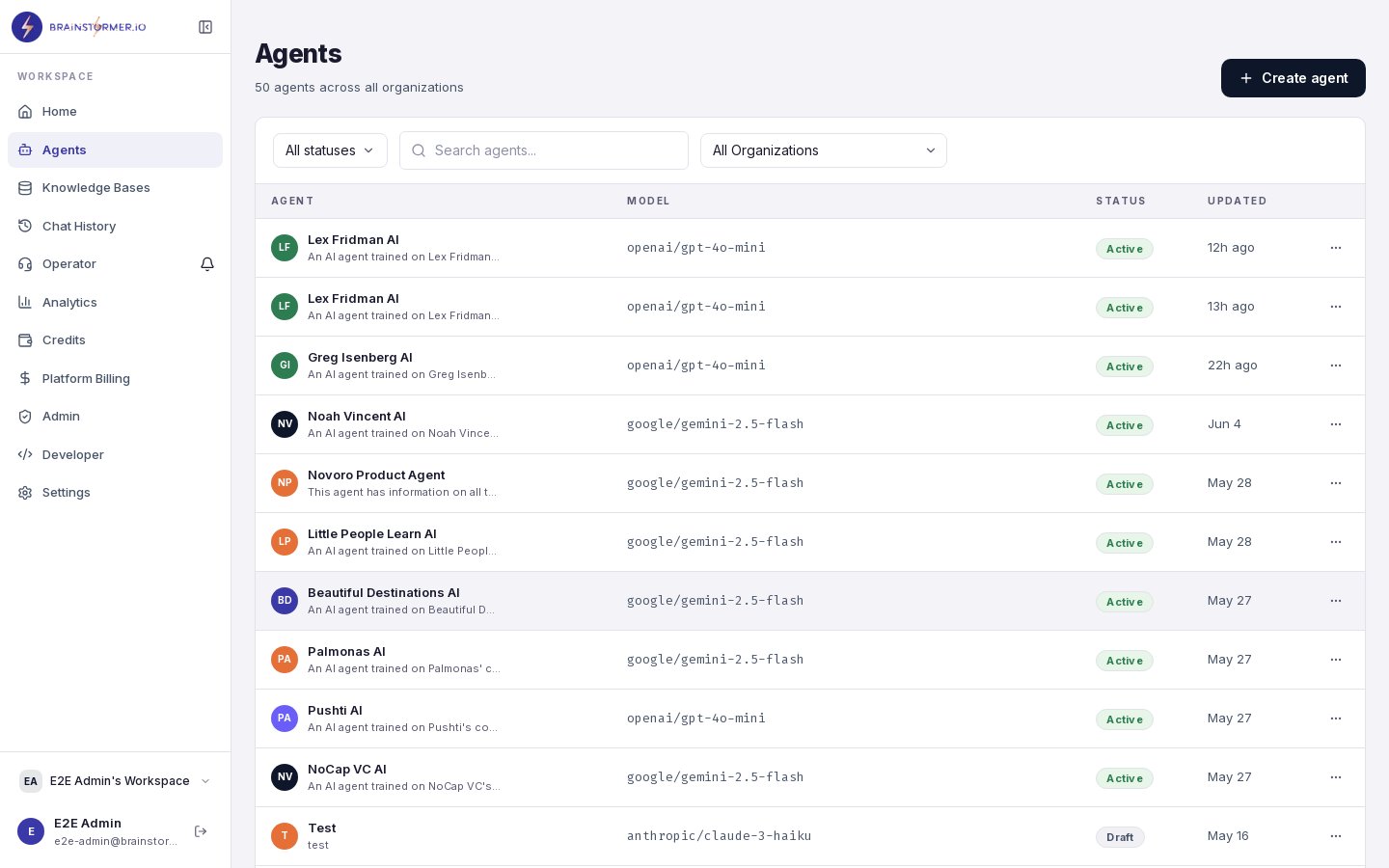
1. Navigate to **Agents** in the sidebar.
2. Click **Create Agent**.
3. On the path selection screen, choose **Creator Wizard**.
You can also navigate directly to `/agents/create?path=creator`.
## The 3-Step Flow
## When to Use the Creator Wizard
Choose the Creator Wizard if you:
* Have existing public content (blog posts, articles, social media)
* Want an agent that represents your expertise and voice
* Prefer a fast, guided setup over manual configuration
If you need full control over every setting from the start, use the [Classic Setup](#classic-builder-alternative) instead.
## How to Start
1. Navigate to **Agents** in the sidebar.
2. Click **Create Agent**.
3. On the path selection screen, choose **Creator Wizard**.
You can also navigate directly to `/agents/create?path=creator`.
## The 3-Step Flow
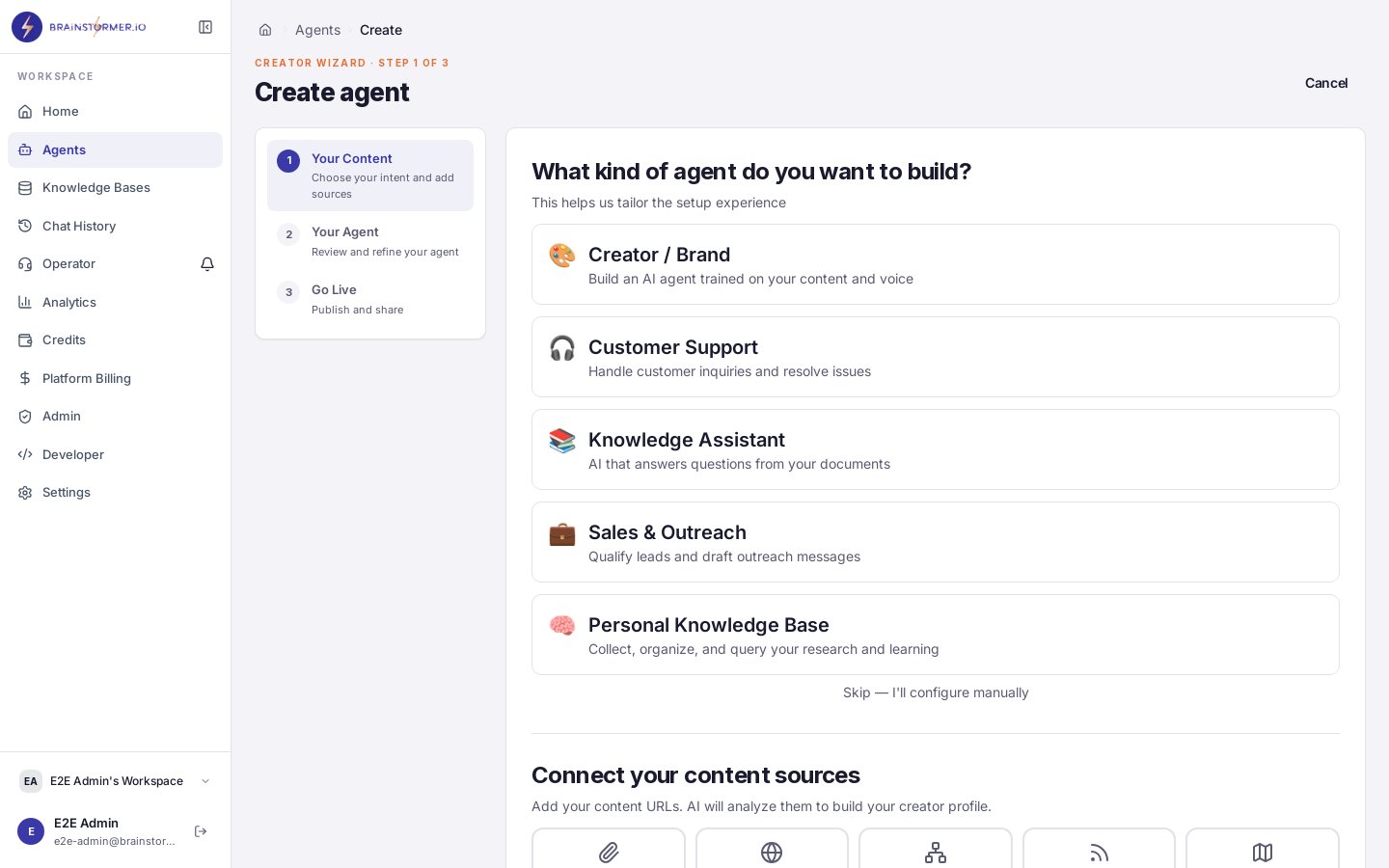 Add the public URLs where your content lives. You can add:
* **Website URLs** — Blog posts, landing pages, about pages
* **RSS feeds** — Automatically pull in all posts from a feed
* **Sitemaps** — Discover and add all pages from a sitemap
Brainstormer performs a **light scrape** of each URL instantly, pulling in text content for analysis. This is fast — you do not need to wait for full knowledge base indexing at this stage.
Add 3-5 of your best, most representative content pieces. The AI analysis works better with a focused set of high-quality sources than a large volume of thin content.
You can add up to 10 URLs in the light scrape step.
Based on the content you connected, Brainstormer generates:
* **Creator profile summary** — A description of who you are, your expertise, and your audience
* **Voice-aligned system prompt** — A system prompt scaffold that captures your communication style and tone
Both are fully editable. Review the generated profile and adjust anything that does not feel right. The system prompt is what your agent will use to guide its behavior in conversations.
The AI analysis uses the scraped content to detect your areas of expertise, writing style, and target audience. The more representative your source content, the better the generated profile.
On the final step, you can:
* **Edit the agent name** and description
* **Select an AI model** from 300+ options (a sensible default is pre-selected)
* **Review the system prompt** one more time
* **Create and publish** your agent
When you click **Create**, Brainstormer:
1. Creates a dedicated knowledge base for your agent
2. Links all your sources to that knowledge base
3. Creates the agent with your configured system prompt and model
4. Kicks off full knowledge base indexing (vector embeddings, chunking) in the background
Full knowledge base indexing runs asynchronously after agent creation. Your agent is immediately available for chat, and its responses will improve as indexing completes and more content becomes searchable.
## What Happens Behind the Scenes
The Creator Wizard reuses the same infrastructure as the rest of the platform:
1. **Knowledge base creation** — A new KB is created and linked to your agent via the standard KB API.
2. **Source ingestion** — URLs are added as KB sources. The content pipeline processes them through chunking, embedding (Gemini Embedding 2), and vector storage (Pinecone or ChromaDB).
3. **Agent creation** — The agent is created with the generated system prompt stored as a versioned prompt configuration.
4. **RAG integration** — Once indexing completes, the agent retrieves relevant content from the KB during chat and includes citations in responses.
## Classic Builder Alternative
The **Classic Setup** is the full-featured agent builder that gives you granular control over every aspect of your agent. It follows a step-by-step flow:
1. **Basic Info** — Agent name, description, and avatar
2. **Provider Selection** — Choose your AI provider
3. **Model Selection** — Pick a specific model with filtering and recommendations
4. **System Prompt** — Write your prompt with variable support and versioning
5. **Preview** — Review the complete configuration
After creation, you can further configure your agent through the tabbed editor:
* Configure (model, temperature, voice settings)
* Visitor Questions
* Prompt
* Knowledge
* Tools
* Preview
* Brand
* Channels
To use the Classic Setup, choose **Classic Setup** on the path selection screen or navigate to `/agents/create?path=classic`.
## Switching Between Paths
Agents created through either path are identical once created. You can:
* Create an agent with the Creator Wizard, then fine-tune it in the full agent editor
* Create an agent with Classic Setup, then link a knowledge base manually
* Use the Creator Wizard for your first agent and Classic Setup for subsequent ones
The paths are just different entry points to the same underlying agent system.
Add the public URLs where your content lives. You can add:
* **Website URLs** — Blog posts, landing pages, about pages
* **RSS feeds** — Automatically pull in all posts from a feed
* **Sitemaps** — Discover and add all pages from a sitemap
Brainstormer performs a **light scrape** of each URL instantly, pulling in text content for analysis. This is fast — you do not need to wait for full knowledge base indexing at this stage.
Add 3-5 of your best, most representative content pieces. The AI analysis works better with a focused set of high-quality sources than a large volume of thin content.
You can add up to 10 URLs in the light scrape step.
Based on the content you connected, Brainstormer generates:
* **Creator profile summary** — A description of who you are, your expertise, and your audience
* **Voice-aligned system prompt** — A system prompt scaffold that captures your communication style and tone
Both are fully editable. Review the generated profile and adjust anything that does not feel right. The system prompt is what your agent will use to guide its behavior in conversations.
The AI analysis uses the scraped content to detect your areas of expertise, writing style, and target audience. The more representative your source content, the better the generated profile.
On the final step, you can:
* **Edit the agent name** and description
* **Select an AI model** from 300+ options (a sensible default is pre-selected)
* **Review the system prompt** one more time
* **Create and publish** your agent
When you click **Create**, Brainstormer:
1. Creates a dedicated knowledge base for your agent
2. Links all your sources to that knowledge base
3. Creates the agent with your configured system prompt and model
4. Kicks off full knowledge base indexing (vector embeddings, chunking) in the background
Full knowledge base indexing runs asynchronously after agent creation. Your agent is immediately available for chat, and its responses will improve as indexing completes and more content becomes searchable.
## What Happens Behind the Scenes
The Creator Wizard reuses the same infrastructure as the rest of the platform:
1. **Knowledge base creation** — A new KB is created and linked to your agent via the standard KB API.
2. **Source ingestion** — URLs are added as KB sources. The content pipeline processes them through chunking, embedding (Gemini Embedding 2), and vector storage (Pinecone or ChromaDB).
3. **Agent creation** — The agent is created with the generated system prompt stored as a versioned prompt configuration.
4. **RAG integration** — Once indexing completes, the agent retrieves relevant content from the KB during chat and includes citations in responses.
## Classic Builder Alternative
The **Classic Setup** is the full-featured agent builder that gives you granular control over every aspect of your agent. It follows a step-by-step flow:
1. **Basic Info** — Agent name, description, and avatar
2. **Provider Selection** — Choose your AI provider
3. **Model Selection** — Pick a specific model with filtering and recommendations
4. **System Prompt** — Write your prompt with variable support and versioning
5. **Preview** — Review the complete configuration
After creation, you can further configure your agent through the tabbed editor:
* Configure (model, temperature, voice settings)
* Visitor Questions
* Prompt
* Knowledge
* Tools
* Preview
* Brand
* Channels
To use the Classic Setup, choose **Classic Setup** on the path selection screen or navigate to `/agents/create?path=classic`.
## Switching Between Paths
Agents created through either path are identical once created. You can:
* Create an agent with the Creator Wizard, then fine-tune it in the full agent editor
* Create an agent with Classic Setup, then link a knowledge base manually
* Use the Creator Wizard for your first agent and Classic Setup for subsequent ones
The paths are just different entry points to the same underlying agent system.